






Ever spotted a beautiful font on a poster, logo, website, meme, or Instagram story and wondered, “What font is this?” In 2026, identifying fonts has become incredibly easy thanks to AI-powered tools, massive font databases, and browser extensions that do the heavy lifting in seconds. Whether it’s a custom script font in a wedding invitation, a bold sans-serif on a brand logo, or elegant serif text on a book cover, you can usually find an exact or very close match for free. This complete guide covers the best methods—online upload tools, browser inspectors, mobile apps, and pro tips—so you can identify fonts quickly and accurately without frustration.
Why Identifying Fonts Matters (and Why It’s Easier Than Ever)
Designers, marketers, content creators, and hobbyists often need to match fonts for branding consistency, recreating graphics, or simply satisfying curiosity. With over 200,000+ commercial fonts available and AI improving recognition accuracy, tools in 2026 can analyze letter shapes, spacing, weights, and serifs with high precision. The key is having a clear image of the text (high resolution, good contrast, straight-on view) and knowing which tool fits your scenario.

Method 1: Upload an Image – Best for Logos, Posters, Screenshots, or Photos
If the font is in a static image (not live text on a webpage), these free online tools are your go-to options. They use AI and shape-matching algorithms to scan your upload and suggest matches from huge libraries.
Top Recommended Image Upload Tools in 2026
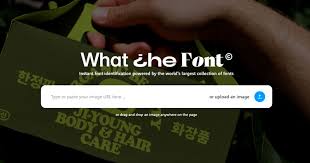
- WhatTheFont by MyFonts (myfonts.com/pages/whatthefont): One of the oldest and most accurate. Upload your image, crop the text area, and it scans over 233,000 fonts. Great for both exact matches and close alternatives. Mobile app available too.
- Font Squirrel Matcherator / Fontspring Matcherator (fontsquirrel.com/matcherator or fontspring.com/matcherator): Upload JPG/PNG/GIF, manually highlight letters if needed, and it matches against free + commercial fonts. Excellent for obscure or decorative typefaces.
- Adobe Fonts Visual Search (fonts.adobe.com/fonts/vs/upload): Upload an image directly—Adobe’s AI suggests fonts from their massive licensed library. Ideal if you have Creative Cloud.
- WhatFontIsThis.ai (whatfontisthis.ai): Pure AI-driven tool—fast for serif, sans-serif, and script fonts. Free and no signup required.
- Creative Market Font Finder (creativemarket.com/font-finder): Upload and get matches from their marketplace—good for discovering buyable fonts quickly.
Pro tip: For best results, crop tightly around the text, use high-contrast images, and include multiple characters (especially unique letters like g, a, Q, R, or numbers).
Method 2: Identify Fonts on Live Websites – Browser Extensions & Dev Tools
If the font is on a webpage (blog, brand site, online store), use these instant inspectors—no upload needed.
- WhatFont Chrome Extension (Chrome Web Store): Hover over any text → popup shows font family, size, weight, color, and line height. Super simple and accurate for CSS-defined fonts.
- Font Finder / WhatFont Chrome/Firefox Extensions: Similar hover tools—click or hover to reveal full CSS font stack.
- Built-in Browser DevTools (Chrome/Edge/Firefox):
- Right-click text → Inspect (or F12).
- In the “Styles” pane, look for font-family declaration (e.g., “font-family: ‘Inter’, sans-serif;”).
- In Firefox, switch to the “Fonts” tab in Inspector for a visual preview of used fonts.
These work perfectly for web-safe fonts, Google Fonts, Adobe Fonts, or custom @font-face loads.
Method 3: Mobile & Quick Apps for On-the-Go Identification
On your phone:
- WhatTheFont App (iOS/Android): Snap a photo or upload → instant results.
- Adobe Capture (free in Creative Cloud): Camera-based font detection + shape/color capture.
- Google Lens (built-in on Android or app): Point camera at text → sometimes identifies font via Google search integration.
Advanced Tips & Troubleshooting for Tough Fonts
– If tools fail: Manually compare characteristics (serif vs sans, x-height, counter shapes, terminals) on sites like Identifont or FontJoy.
– Custom/hand-drawn fonts: May not match exactly—look for “similar” suggestions or free alternatives on Dafont/Google Fonts.
– Paid/commercial fonts: Tools often suggest free dupes (e.g., Inter instead of Proxima Nova).
– Privacy note: Uploaded images are usually processed anonymously, but avoid sensitive content.
– For 2026 accuracy boost: AI tools like WhatFontIsThis.ai and Adobe Visual Search have improved dramatically thanks to better deep learning models.
Conclusion
Finding “what font is this” is no longer a headache in 2026—upload to WhatTheFont or Matcherator for images, hover with WhatFont extension for websites, or snap with a mobile app for quick wins. Start with a clear crop or inspect, and you’ll usually get solid matches in seconds. Once identified, pair it with free alternatives from Google Fonts or buy the original if it’s perfect. Next time you see stunning typography, you’ll know exactly how to recreate it. Got a tricky font you’re trying to ID? Describe it or share details in the comments—happy font hunting!